
Windows is where most Clash Verge users live. The install itself is quick, but three things routinely trip people up: which installer to pick, what to do with the SmartScreen warning, and the blank window some systems show afterwards. Here is the whole path, in order.
Step 1: Pick the right installer
On the download page, nearly everyone wants Clash.Verge_2.5.6_x64-setup.exe — the standard 64-bit build. Two exceptions:
- Snapdragon/ARM laptops: take the
arm64-setup.exeinstead; - Trimmed-down Windows images (LTSC-lite, debloated builds): go straight for the installer marked
fixed_webview2, which sidesteps the blank-window problem described below.
Unsure of your architecture? Right-click "This PC" → Properties → "System type". Any consumer PC from the last decade is almost certainly x64.
Sponsored Where does the subscription link come from? Our partner provider gives you 1 GB of high-speed Hong Kong data at signup — import it in one click. Get high-speed nodesStep 2: Run the setup
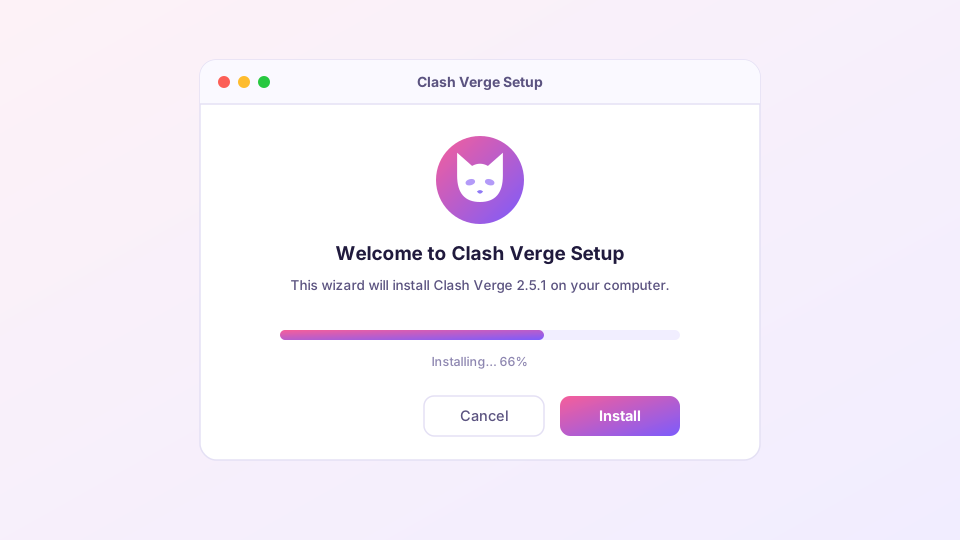
Double-click the installer. If a blue "Windows protected your PC" dialog appears, that is SmartScreen doing its routine check on recently published binaries — not a malware verdict. Click More info, then Run anyway.
SmartScreen scores files by download history and signing reputation, so fresh releases trigger it often. The prerequisite is that your installer really came from the official release — verify it first via checking official downloads if in doubt.
The wizard itself is clean: no bundled software, no tricky checkboxes. Default install path is C:\Program Files\Clash Verge; there is rarely a reason to change it.
Step 3: First launch
Two system prompts may appear the first time you run it:
- Firewall: tick both "Private" and "Public" networks and allow access. Denying this breaks LAN sharing later.
- UAC elevation: shown when you enable Service Mode or TUN — expected behavior.
Once the main window appears, installation is done. Continue with the five-minute quick start to import a subscription.
Common issues
The window is blank / white
Your system lacks the WebView2 runtime. Uninstall, then install the fixed_webview2 variant — problem gone. More context in startup troubleshooting.
A port error appears on launch
Another proxy app is usually still running. Quit Clash for Windows, v2rayN or similar and retry, or walk through the port conflict fix.
Coming from Clash for Windows?
Your subscriptions and settings carry over cleanly — the migration guide takes about ten minutes to follow.