
A subscription bundles dozens of nodes and routing rules from your provider into one config, delivered through a single link. This guide covers the three ways to import one, and the two things worth doing right after.
Method 1: Paste the URL (the usual way)
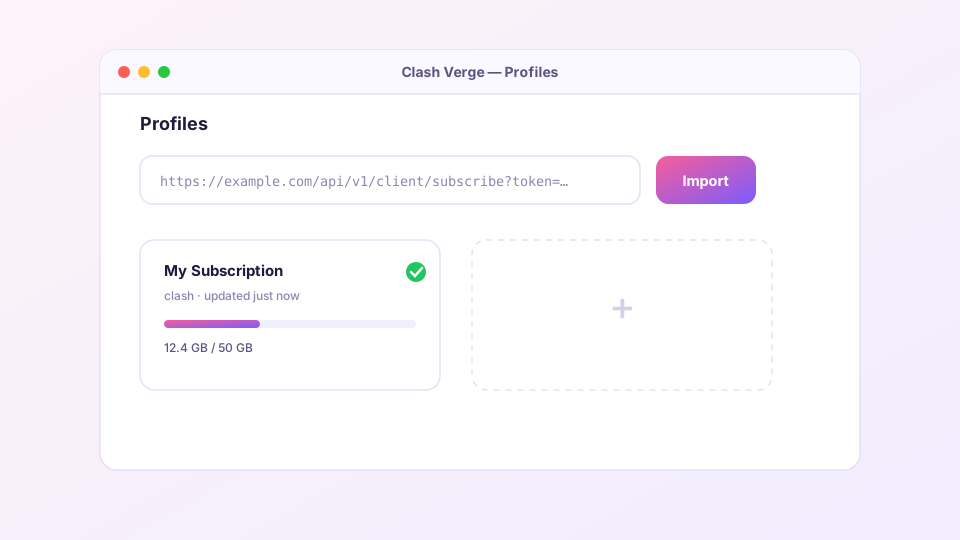
Copy the subscription link from your provider's dashboard — the button is typically labeled "Copy subscription" or "Clash subscription". Make sure it is the Clash format link, not the V2Ray/Base64 one.
In Clash Verge, open the Profiles page, paste the link into the top input and hit Import. A card appears below showing the profile name, used traffic and expiry. Click the card to select it — the single most-missed step; an unselected profile is inert.
Sponsored Where does the subscription link come from? Our partner provider gives you 1 GB of high-speed Hong Kong data at signup — import it in one click. Get high-speed nodesMethod 2: Import a local file
Holding a config.yaml instead of a link? Click "New" on the Profiles page, choose the Local type, and paste the file contents or pick the file. This is the usual route for self-hosted servers and hand-written configs.
Method 3: One-click deep link
Some provider sites offer an "Import to Clash" button that launches Clash Verge directly via the clash:// protocol — no copying involved. Allow the browser's "open Clash Verge?" prompt and the profile lands by itself.
After importing: set auto-update
Providers rotate their nodes; stale profiles die quietly. Right-click the profile card → "Edit info" and set the update interval to 1440 minutes (daily). You can also right-click → "Update" any time for a manual refresh.
If your provider's domain is blocked locally, tick "Update via proxy" so the refresh request goes through the tunnel; if the proxy itself is down, untick it and update over the direct connection. Toggling this both ways solves most update failures.
Managing multiple subscriptions
Clash Verge holds any number of profiles, but exactly one is active — the selected card. Switching providers is one click on another card. Combining nodes from several providers into one list is possible via Merge enhancement, an advanced but tidy technique.
Quick answers
- Imported fine but no nodes? Check the card is actually selected; then look at the Proxies page. Empty groups mean a malformed subscription — contact the provider.
- 403 / 404 / timeout on import? Work through subscription import troubleshooting.
- Want to tweak the rules inside the subscription? Never edit the profile file directly — updates overwrite it. Use Merge/Script or custom rules instead.
With a selected, working profile, return to the quick start for node selection and the system proxy toggle.