
TUN mode routes every application's traffic through the proxy core, whether or not the app respects the system proxy. The concept is explained in system proxy vs TUN; this page is purely about switching it on and tuning it.
Prerequisite: Service Mode
Creating a virtual adapter requires system-level privileges. Clash Verge holds them through a small background service — Service Mode — so you are not prompted on every launch.
In Settings, find Service Mode and click install. Windows shows a UAC prompt; macOS/Linux ask for your password. The status should read "active" afterwards.
If the service fails to install: antivirus interference is the usual cause (allow it temporarily), or a stale service from a previous install (uninstall the service, then reinstall). Persistent failures: see troubleshooting.
Flip the switch
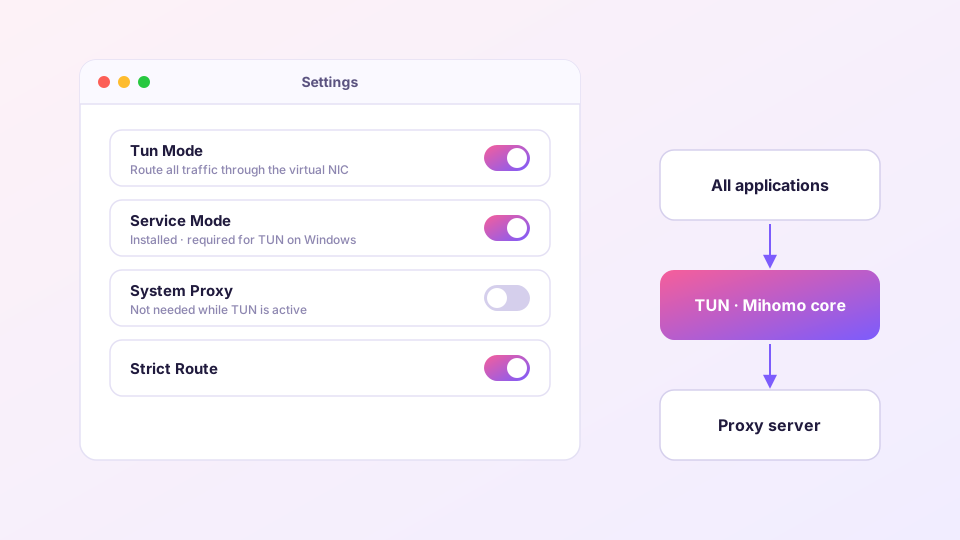
Back in Settings, enable TUN Mode. A new network adapter named Mihomo or utun appears in the system and all traffic starts flowing through it. Load any page to confirm connectivity.
With TUN on, the System Proxy toggle becomes optional — TUN's coverage is a superset. Leaving system proxy on as well does no harm and helps some apps detect the proxy faster.
Three settings worth knowing
- Stack: default
Mixedis right for most. If one specific app misbehaves under TUN, trygVisororSystemfor comparison. - DNS hijack: default
any:53captures every plaintext DNS query into the core — the key anti-leak measure. Leave it on; background in DNS and leak protection. - Strict Route: prevents traffic from slipping past the TUN adapter. More thorough coverage, but can interfere with LAN devices (printers, casting) — disable only if those break.
Platform notes
- Windows: Service Mode is mandatory. Other VPN products' virtual adapters can fight over routes — disable one side when they clash.
- macOS: approve the "add network configuration" prompt on first enable. If the network dies after enabling, check the utun interface's service order under System Settings → Network.
- Linux: Service Mode relies on systemd; on other init systems grant the capability manually with
setcap cap_net_admin+epon the core binary.
Confirming TUN really works
- The Connections page starts listing processes beyond your browser — games, terminals, system services;
curl ip.sbin a terminal (no proxy variables set) returns the proxy's exit IP;- A DNS leak test shows resolvers belonging to the tunnel, not your ISP — method in the DNS guide.
Gaming-specific TUN tuning (UDP, jitter) has its own page: gaming optimization.