
The Proxies page offers three modes: Rule, Global, Direct. They decide what happens to traffic once it reaches the core. Sitting in the wrong mode is one of the most common beginner problems — usually Direct, wondering why the proxy "does nothing".
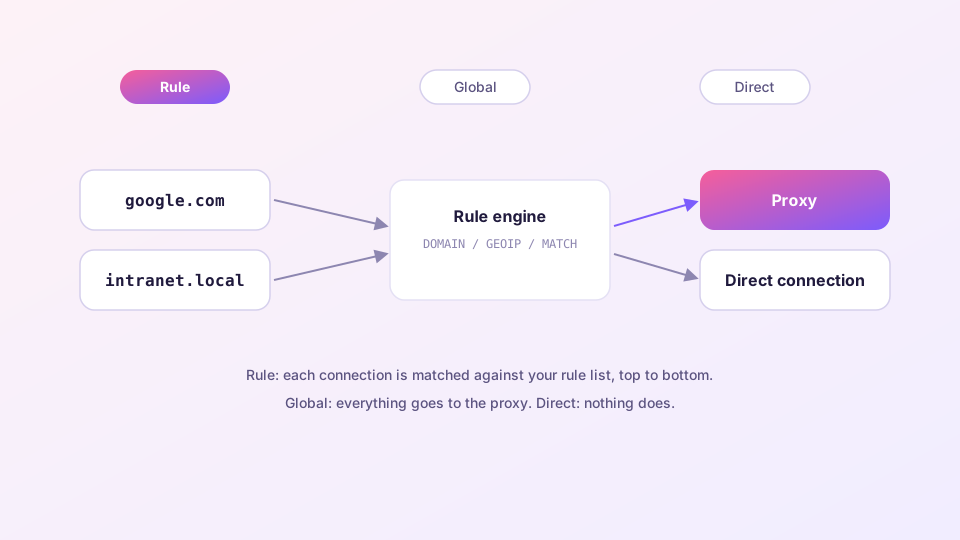
Rule mode: the everyday default
Every connection is matched top-to-bottom against the rule list in your config. A typical subscription's rules boil down to:
DOMAIN-SUFFIX,youtube.com,PROXY   # YouTube via proxy
DOMAIN-SUFFIX,intranet.local,DIRECT
GEOIP,CN,DIRECT                   # local IPs connect directly
MATCH,PROXY                       # everything else via proxy
The result: local sites stay fast and direct, foreign sites ride the tunnel automatically. You should be in Rule mode 95% of the time. The rules themselves are extendable — see the custom rules guide.
Sponsored Where does the subscription link come from? Our partner provider gives you 1 GB of high-speed Hong Kong data at signup — import it in one click. Get high-speed nodesGlobal mode: the sledgehammer
Skips all rules; everything goes to your selected node. Two legitimate uses:
- Debugging — suspect a rule is misrouting a site? Switch to Global and compare;
- Special cases — the whole machine's traffic must exit in a specific country for a while.
Not a daily driver: local traffic detours through the proxy, everything slows down, and your quota drains for no benefit.
Direct mode: the pause button
All traffic connects directly, as if no proxy existed. Handy when you briefly need a clean connection without quitting the app. One subtlety: the system proxy still points at Clash, so traffic still flows through the core — it just skips the nodes. When debugging networks or capturing packets, remember this differs from actually exiting Clash Verge.
Beyond modes: the group selection matters too
Modes decide whether rules apply; which node the PROXY exit actually uses is decided by your selection in the proxy groups. Group types you will meet:
| Group type | Behavior |
|---|---|
select | Manual — whatever you clicked |
url-test | Automatically picks the lowest-latency node |
fallback | Switches to a backup when the primary dies |
load-balance | Spreads traffic across nodes |
How to read latency numbers and choose well is covered in node selection and latency testing.
Switching modes quickly
Right-click the tray icon — all three modes are right there, no main window needed. Assigning a global hotkey to mode switching is described in hotkeys and tray tips.