Official Linux builds come as deb and rpm packages, covering the Debian and Red Hat families; Arch users have the AUR. GNOME and KDE are the best-supported desktops, on both X11 and Wayland — with a couple of Wayland caveats covered at the end.
Debian / Ubuntu and derivatives
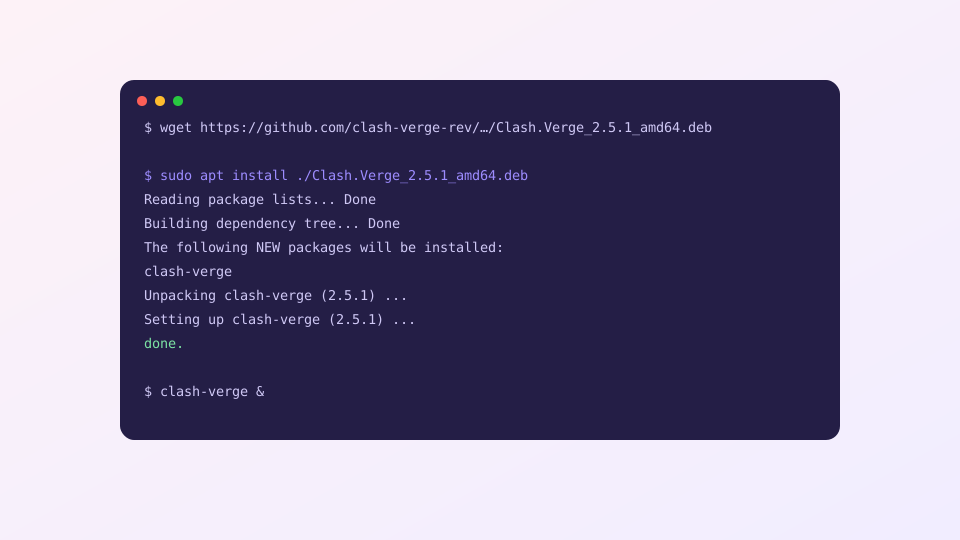
Download amd64.deb from the download page (arm64.deb for ARM machines), then install it with apt so dependencies come along automatically:
sudo apt install ./Clash.Verge_2.5.6_amd64.debIf you prefer dpkg -i, follow up with sudo apt -f install when it complains about dependencies.
Fedora / RHEL / openSUSE
sudo dnf install ./Clash.Verge-2.5.6-1.x86_64.rpm
# openSUSE:
sudo zypper install ./Clash.Verge-2.5.6-1.x86_64.rpm
Arch / Manjaro
A community-maintained package lives in the AUR:
yay -S clash-verge-rev-binIt upgrades with the rest of your system — no manual downloads afterwards.
First launch and TUN permissions
Start Clash Verge from the app menu or by running clash-verge. TUN mode on Linux needs elevated network capabilities on the core binary; the app's Service Mode handles this for you. To verify manually:
getcap /usr/bin/verge-mihomoSeeing cap_net_admin,cap_net_bind_service=+ep means TUN is ready. Full TUN setup is in the TUN mode guide.
Known quirks
Blank window or no input under Wayland
Some WebKitGTK versions misbehave on Wayland. Forcing a compositing workaround usually fixes it:
WEBKIT_DISABLE_COMPOSITING_MODE=1 clash-vergeSystem proxy not applying
Clash Verge knows how to set the proxy on both GNOME and KDE. Minimal window-manager setups (i3, Sway) have no central proxy setting to write to — use environment variables instead, as described in terminal proxy setup.
No tray icon
GNOME needs the AppIndicator extension (gnome-shell-extension-appindicator) before tray icons show up.
From here the setup is identical everywhere: run through the quick start and you are online.