
The hard part of installing Clash Verge on a Mac is not the install — it is macOS Gatekeeper, which will very likely greet you with "Clash Verge is damaged and can't be opened". The file is fine. Here is the full sequence, commands included.
Step 1: Match the image to your chip
Apple menu → About This Mac:
- "Chip" says Apple M1/M2/M3/M4 → download
aarch64.dmg; - It says Intel Core i5/i7 → download
x64.dmg.
Both live in the macOS section of the download page. Installing the wrong one will not break anything, but it runs through translation and wastes performance.
Sponsored Where does the subscription link come from? Our partner provider gives you 1 GB of high-speed Hong Kong data at signup — import it in one click. Get high-speed nodesStep 2: Drag to Applications
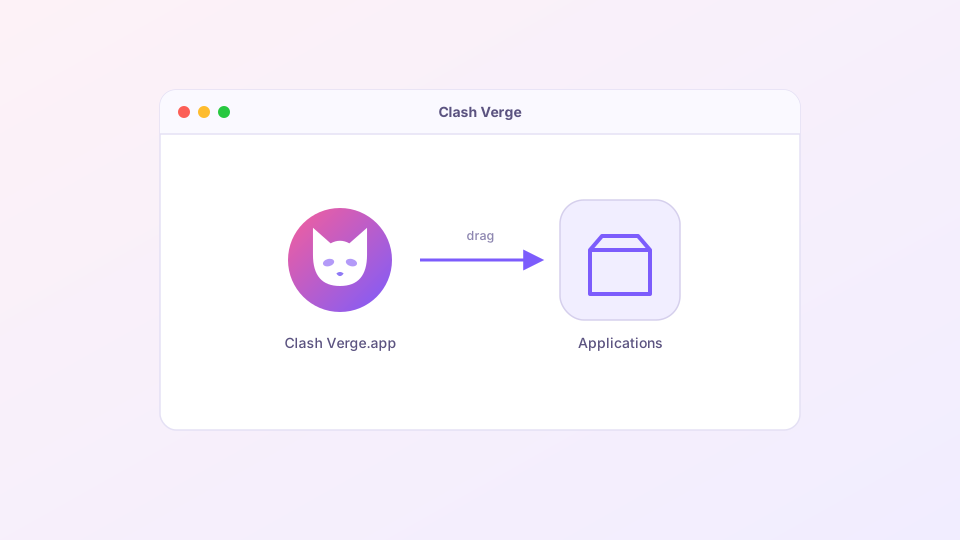
Open the DMG and drag the Clash Verge icon onto the Applications folder. That is the whole "installation" on macOS. Eject the DMG volume afterwards.
Step 3: Clear the "damaged" block
On first open, macOS will most likely claim the app is damaged and offer to move it to the Trash. This is Gatekeeper's default treatment of apps distributed outside the App Store without notarization — not actual corruption. Remove the quarantine attribute in Terminal:
sudo xattr -cr "/Applications/Clash Verge.app"Type your login password (nothing appears as you type — normal), press Return, and open the app again.
If you get the milder "cannot verify the developer" dialog instead, System Settings → Privacy & Security has an "Open Anyway" button near the bottom.
Step 4: Approve the helper
The first time you switch on the system proxy or TUN mode, Clash Verge installs a helper service and asks for an administrator password once. Afterwards you will see the proxy entries under System Settings → Network being managed by the app — expected.
After installing
The rest is identical to every platform: import a subscription, pick a node, enable the system proxy — the quick start covers it. To route terminal tools like git and curl through the proxy on macOS, see terminal proxy setup.
Updating and uninstalling
To update, drag the new version over the old one — settings live in your user folder and survive. To uninstall, trash the app; the leftover config sits at ~/Library/Application Support/io.github.clash-verge-rev.clash-verge-rev if you want a truly clean removal, as described in the clean uninstall guide.