
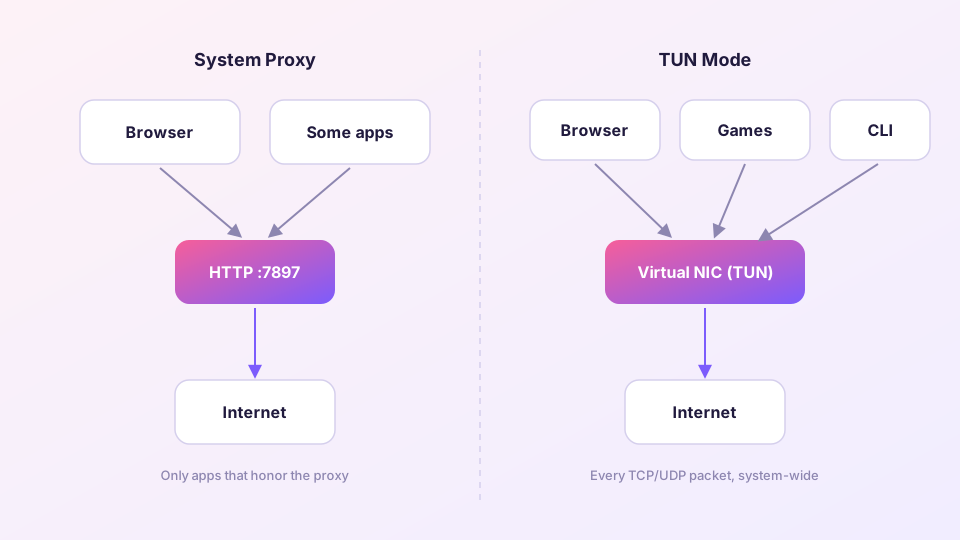
Android has no system proxy setting, so every Clash client on the platform goes through the system VPN interface instead — the same effect as desktop TUN, with all device traffic entering the core. Here is the run-through, with weight on the two steps people skip: the APK architecture and keeping the app alive.
Picking the right APK
The release page usually offers several APKs that differ only in architecture:
- arm64-v8a: essentially every phone from the last several years. Try this first.
- armeabi-v7a: much older or low-end hardware.
- x86_64: emulators and a handful of tablets.
- universal: everything in one file — larger, but guaranteed to install.
The wrong architecture shows up as "App not installed" or as a crash on first launch. Grab a different file and move on.
Not sure what your phone is? Install the universal build. The extra few dozen megabytes are not worth thinking about.
First launch and the VPN prompt
The first time you hit start, Android asks whether the app may set up a VPN connection. Allow it. You are not connecting to somebody's VPN service — this is simply the permission Android requires from anything that captures device-wide traffic. Once granted, a key icon sits in the status bar.
Android allows exactly one active VPN at a time. If you also have another proxy or ad-blocking app installed, the two are mutually exclusive: whichever starts last kicks the other one out.
Subscriptions and per-app routing
The subscription step matches desktop: the plus button on the profiles page, paste the URL, or import a local YAML file. The same link works on phone and computer — details in importing a subscription.
Mobile adds something desktop does not have: per-app routing. You can send only selected apps through the proxy, or exclude banking, payment and carrier apps. Those in particular tend to refuse service outright when they see a foreign exit IP, so excluding them saves a lot of confusion.
Drops as soon as the screen turns off?
- Turn off battery optimisation: Settings → Apps → the client → Battery → Unrestricted. This is the number one cause of dropped connections.
- Allow autostart: many Android skins gate this separately under app management. Enable it, or the client will not come back after a reboot.
If it still disconnects after both, the problem is the nodes or the config rather than the phone — import the same subscription on a computer and you will know which side to blame within a minute.
The other option: borrow the computer's proxy
If the phone and the computer share a Wi-Fi network and you only need this occasionally, skip the client entirely: enable Allow LAN on the computer and set the phone's Wi-Fi proxy to that machine's IP and port. It costs no battery and there is only one config to maintain — see sharing the proxy over the LAN. The catch is obvious: leave that Wi-Fi and it is gone.